July 17

Marit.es : Η έξυπνη εφαρμογή ασφαλείας για Tesla

Το Marites (marit.es) είναι μια προηγμένη εφαρμογή  για κατόχους Tesla, φτιαγμένη με κύριο στόχο την ασφάλεια αλλά και να δίνει πλήρη εικόνα και έλεγχο του οχήματός σας — ζωντανά, άμμεσα και χωρίς περιττή πολυπλοκότητα.

Τι προσφέρει

  • Ζωντανή παρακολούθηση οχήματος — θέση, κατάσταση φόρτισης, μπαταρία, κλιματισμός, όλα σε πραγματικό χρόνο μέσω του Tesla Fleet API.
  • Sentry Mode ειδοποιήσεις — άμεση ειδοποίηση μέσω Telegram (@MaritesAppBot) με pin τοποθεσίας, μόλις ενεργοποιηθεί συναγερμός στο αυτοκίνητο.
  • Ανίχνευση Phantom Drain — γράφημα που δείχνει πόση μπαταρία «χάνεται» ενώ το αυτοκίνητο είναι σταθμευμένο, σε Wh/ημέρα και ποσοστό.
  • Battery Health — παρακολούθηση φθοράς μπαταρίας στον χρόνο.
  • Ιστορικό διαδρομών & φορτίσεων — πλήρες log με χάρτες διαδρομών (Mapbox), κατανάλωση kWh, κόστος βάσει τιμολογίου.
  • Εύκολο ζευγάρωμα — σύνδεση οχήματος μέσω QR code, χωρίς περίπλοκες ρυθμίσεις.
  • Δύο εκδόσεις — Core (πλήρες σύνολο λειτουργιών) και Lite (ελαφριά εναλλακτική) για Android, με ενεργή ανάπτυξη και συχνές ενημερώσεις.

Γιατί ξεχωρίζει

Σε αντίθεση με γενικές εφαρμογές παρακολούθησης οχημάτων, το Marites είναι σχεδιασμένο αποκλειστικά γύρω από το Tesla Fleet Telemetry — που σημαίνει σχεδόν στιγμιαία ενημέρωση δεδομένων (~0.78 μηνύματα/δευτερόλεπτο) αντί για αργές, χρονοβόρες κλήσεις API. Η υποδομή τρέχει σε ιδιόκτητους servers με πλήρη έλεγχο ασφάλειας και ιδιωτικότητας δεδομένων.

Τιμολόγηση

Συνδρομή €4.99/μήνα με δωρεάν δοκιμή 7 ημερών — καμία δέσμευση, ακύρωση όποτε θέλετε.

Διαθέσιμο στο Marit.es  και στο  Play Store

Ακολουθήστε μας: Facebook | Instagram | X

September 28

MC801A Firmwares

Firmwares  (using google translate):


PLKPLMC801AV1.0.0B03 – Polish (Play operator). Web interface password:admin. Fully compatible with 5G networks (channel n 78 ), the speed does not slow down . The firmware is not updated via the web interface; the firmware update is conditioned by the presence of an original SIM card from the operator

SASTCMC801AV1.0.0B05 – Saudi (STC operator).
Patch 1 (for upgrading B05 to B06 version via computer): DL_MC801A_STC_SAV1.00.01
Patch 2 (for upgrading B05 to B07 version via computer): DL_MC801A_STC_SAV1.00.02

NEW: Saudi firmwareB07(STC operator)ZTE_STC_BD_SASTCMC801AV1.0.0B07 (sew via QFIL, after unpacking, the archive contains folder number 3, no other folders are needed for flashing) There is a firmware update in the web interface , the N78 (5G) channel does not work.

NEW: firmware ZAMTNMC801AV1.0.0B01 (South Africa, MTN operator) Fully compatible with 5G networks (channel n 78 ) speed does not decrease. The firmware is not updated via the web interface; the firmware update is conditioned by the presence of an original SIM card from the operator


TMOPLMC801AV1.0.0B07 – Polish (T-Mobile operator). Web interface password:admin. Fully compatible with 5G networks (channel n 78) speed does not cut . The firmware is not updated via the web interface; the firmware update is conditioned by the presence of an original SIM card from the operator

ATH3GMC801AV1.0.0B08 – Austrian (operator DreiMAXX) – Three . The firmware is not updated via the web interface, the firmware update is due to the presence of an original SIM card from the operator , the N78 (5G) channel does not work.

CNHKMC801AV1.0.0B11 – Hong Kong (SmarTone operator). Fully compatible with 5G networks (channel n 79 ), the speed does not slow down . There is a firmware update in the web interface , the N78 (5G) channel does not work.

FITELIAMC801AV1.0.0B12– Scandinavia (operator Telia), Webcam address http://192.168.32.1 , There is a firmware update in the web interface , the N78 (5G) channel does not work.

MC801A_Elisa2_B13 – Finnish (Elisa operator), Webcam address http://192.168.100.1 , The firmware is not updated via the web interface, the firmware update is due to the presence of an original SIM card from the operator , the N78 (5G) channel does not work.

CNCNLMC801AV1.0.0B12 – Mainland China, blocked frequency aggregation (no LTE CA).

CNCNLMC801AV1.0.0B18 – Mainland China, blocked frequency aggregation (no LTE CA).

CNCNLMC801AV1.0.0B22– Mainland China, blocked frequency aggregation (no LTE CA). There is an update in the web interface for firmware B33. Fully compatible with 5G networks on channel n 78 , the speed does not cut down, but it is necessary to select the carrier frequency B3 (4G) in Debug Page


NEW: : CN_CMIOT_MC801AV1.0.0B02 – China, operator, the largest operator in China “China Mobile” blocked frequency aggregation (without LTE CA). Fully compatible with 5G networks on channel n 78 , the speed does not slow down, but you need to select the carrier frequency B3 (4G) in Debug Page The firmware is not updated via the web interface.


NEW: : BD_CNBGBJMC801AV1.0.0B06 – China, Beijing region, blocked frequency aggregation (without LTE CA). Fully compatible with 5G networks on channel n 78 , the speed does not slow down, but you need to select the carrier frequency B3 (4G) in Debug Page The firmware is not updated via the web interface.

Source: https://4pda.to/forum/index.php?showtopic=1011903&st=100#entry107391391

September 28

MC801/MC801a/MC888 Backup/Restore firmware


How to backup a QCN file :

(File links at the end of the post)

1. Install the drivers: 9008 Qualcomm_USB_Driver_v1.0.zip  and DRV_DC_ZTE_AS_SETUPV1.0.0B03.exe

2. Install QPST_2.7.496 (use only this version, if another is installed, remove and install this one)
2.1. In the folder with QPST you will also find two files that you also need to install (you will need to restart the computer):

I –Python 2.7.13
II –Microsoft Visual C++ (VC_redist)

3. Connect a data cable (type C) from the bottom of the router and enable the diagnostic port by running this file: Sales_DC_SwitchPortV1.00.00
Connect a data cable (type C) from the bottom of the router and turn on the diagnostic port by running this file.

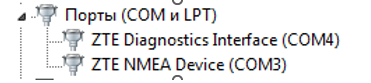
4. In the device manager, you will see that two ports have appeared, as in the screenshot:


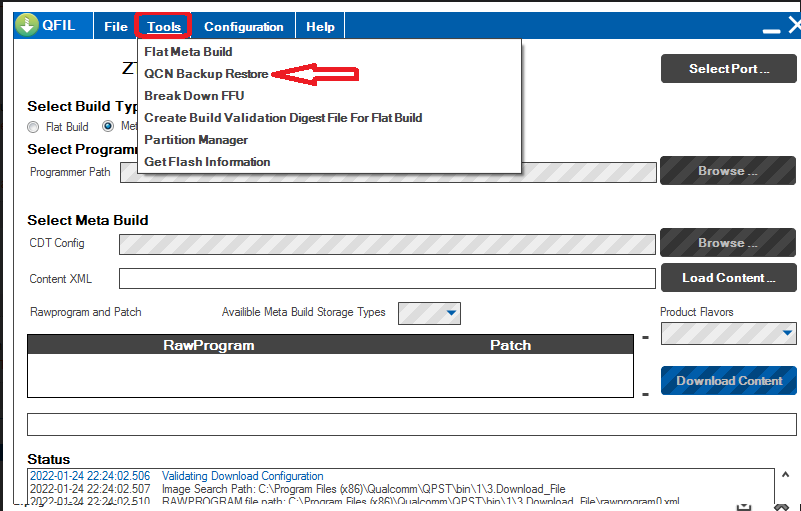
5. Enable the QFIL program, which was installed along with the QPST program, go to “Tools” and select the “QCN backup restore” option: Open


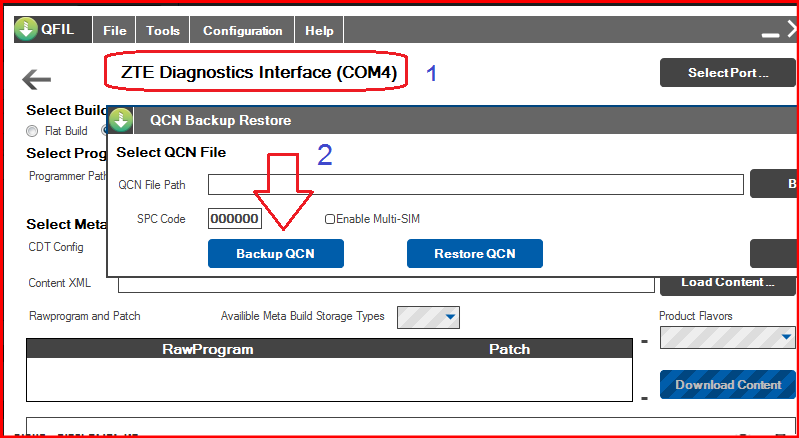
Make sure that the diagnostic port is appeared and click
the “Backup QCN” button:


Copy the saved file to a safe place. The backup is located at C:\Temp on your computer.


Source: https://4pda.to/forum/index.php?showtopic=1011903&st=940#entry112698297


Files

 
Sales_DC_SwitchPortV1.00.00.exe


March 5

SophosXG Customization

Mount filesyustem RW,

mount -no remount,rw /

Use vi to edit /scripts/system/clientpref/customization_application_startup.sh and add the lines. This should then look like:

#!/bin/sh
iptables -t mangle -D POSTROUTING -d 172.19.0.0/16 -p tcp --tcp-flags SYN,RST SYN -j TCPMSS --set-mss 900
exit 0;

Save the changes and exit vi
Write protect the startup script again:
mount -no remount,ro /

October 6

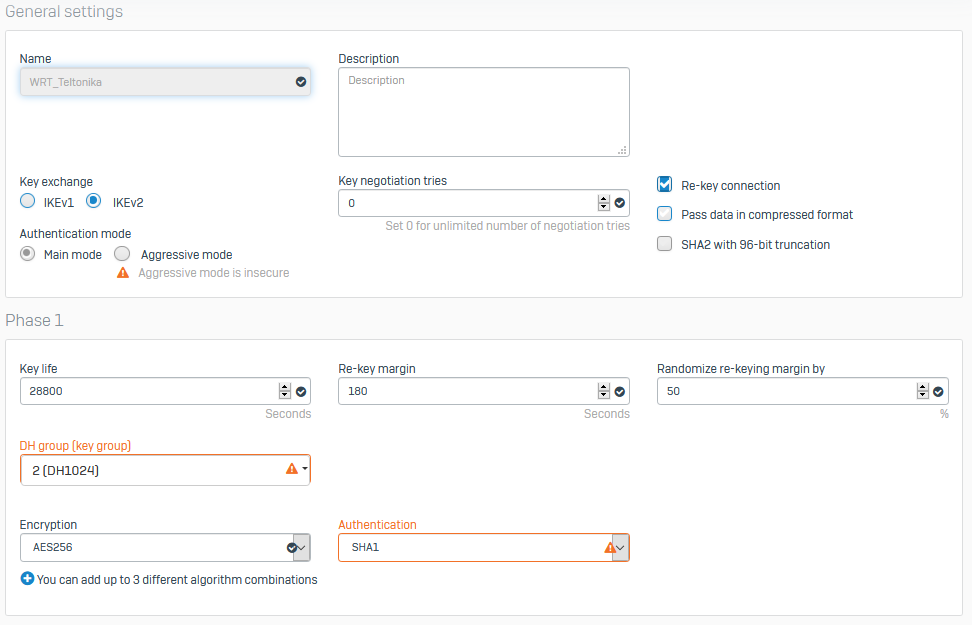
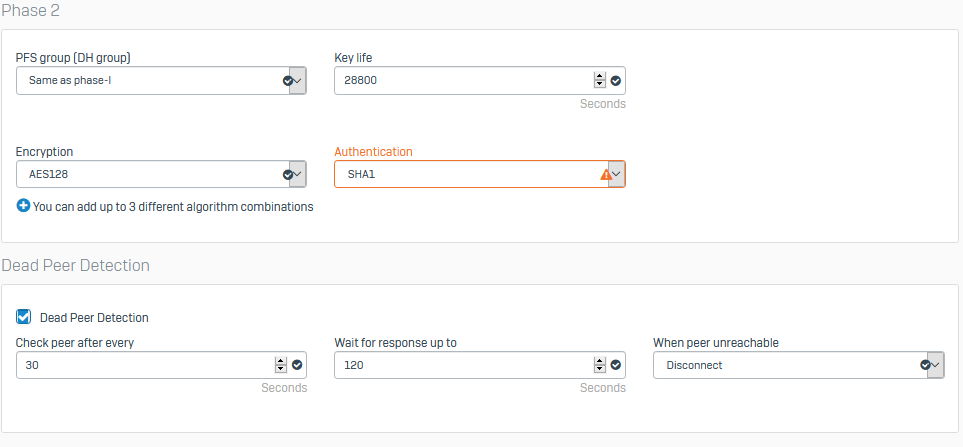
SophosXG IPsec OpenWrt site-to-site

OpenWRT:

This post assumes that you have installed all required packages on router.

/etc/conf/ipsec.conf

config conn ‘CONNECTION_NAME’
option enabled ‘1’
option keyexchange ‘ikev2’
option ipsec_type ‘tunnel’
option auto ‘start’
option leftfirewall ‘yes’
option auth ‘psk’
option right ‘REMOTE_VPN_PUBLIC_IP’
option rightfirewall ‘yes’
# option allow_webui ‘1’
option ike_authentication_algorithm ‘sha1’
option ike_dh_group ‘modp1024’
option ikelifetime ‘28800s’
option esp_encryption_algorithm ‘aes128’
option esp_hash_algorithm ‘sha1’
option esp_pfs_group ‘modp1024’
option keylife ‘28800s’
option ike_encryption_algorithm ‘aes256’
option forceencaps ‘yes’
option my_identifier ‘LOCAL_ID’
option rightid ‘REMOTE_ID’
option dpdaction ‘restart’
list leftsubnet ‘LOCAL_LAN/24’
list rightsubnet ‘REMOTE_LAN/24’
# option keep_enabled ‘1’
# option ping_ipaddr ‘192.168.200.30’
# option ping_period ’15’

config preshared_keys
option psk_key ‘VERY_LONG_PSK_UP_TO_32_CHARS’
list id_selector ‘LOCAL_ID’
Edit /etc/conf/firewall and add the last line to zone WAN
config zone
option name ‘wan’
option input ‘REJECT’
option output ‘ACCEPT’
option forward ‘REJECT’
option masq ‘1’
option mtu_fix ‘1’
option network ‘wan wan6’
list masq_dest ‘!REMOTE_LAN/24’

Enable and start IPsec

/etc/init.d/ipsec enable

/etc/init.d/ipsec start

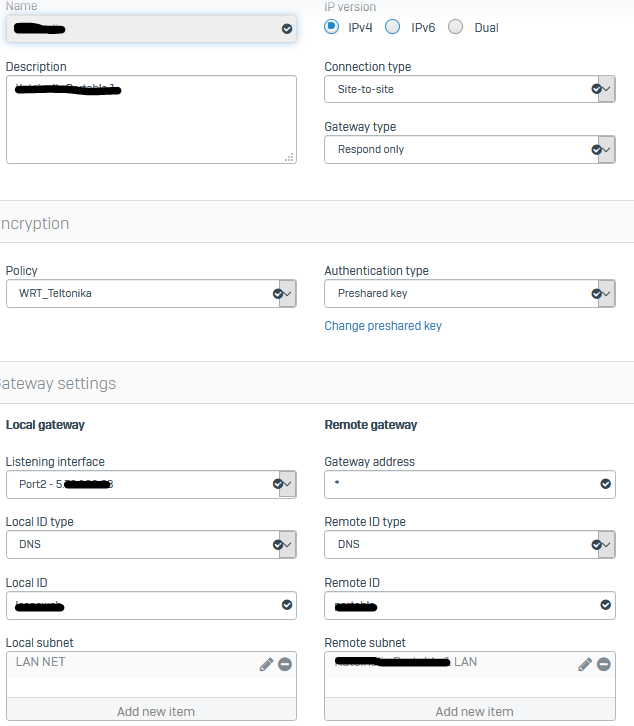
Sophos XG


IPsec Policy (low security for low end devices)


September 10

OpenWRT ( +Linux) Bandwith limit per IP

Limit traffic from/to interface named “wl0” for specific IPs.

Replace 10kbit /20kbit according to your needs.


tc qdisc add dev wl0 root handle 1: htb default 12
tc class add dev wl0 parent 1: classid 1:1 htb rate 1000mbit ceil 1000mbit
tc class add dev wl0 parent 1:1 classid 1:10 htb rate 10kbit ceil 20kbit
tc filter add dev wl0 protocol ip parent 1:0 prio 1 u32 match ip src CLIENT IP/32 flowid 1:10
tc filter add dev wl0 protocol ip parent 1:0 prio 1 u32 match ip dst CLIENT/32 flowid 1:10


Limit for the interface

tc qdisc add dev wl0 handle 1: root htb default 11
tc class add dev wl0 parent 1: classid 1:1 htb rate 50kbit
tc class add dev wl0 parent 1:1 classid 1:11 htb rate 50kbit
October 24

Laptop (HP, ASUS etc) high pitch noise.

I tried the solution below and it worked on my HP 450 G4 laptop,

Certain lines of Asus laptops emit an intermittent high-pitched noise resembling an electronic signal.  


The lines affected include the following:
K5JR
K52JR
k42jr
K51AE
K51AC
K25F
eee PC 1201T
UL80J


This noise has been variously described as a whirling noise, a chirping noise, a whiney noise, and a screeching noise akin to fingernails on a chalkboard.
This noise can be very irritating and have been the subject of numerous complaints to the company.  The company has not been very responsive to these complaints.
The good news is that there is a fix for this problem.  The process takes less than five minutes.  I’m no expert, but the following is what worked for me.  Follow these directions at your own risk!  If you have a better fix, please let them in the comments for everyone’s benefit.

Step 1.

Click the Windows Start icon, and in the “Search Programs and Files” field type regedit

Step 2.

Navigate to the following folder:

HKEY_LOCAL_MACHINE \SYSTEM \CurrentControlSet \Control \Power \PowerSettings \54533251-82be-4824-96c1-47b60b740d00 \5d76a2ca-e8c0-402f-a133-2158492d58ad

Step 3.

Click on ATTRIBUTES

Step 4.

On the top of the dialog box it should say DWORD


Step 5.

Change the 1 to a 0

Step 6.

Click on the Windows Start icon.

Go to Control Panel –>Hardware and Sound –>Change Plan Settings (for each plan that you use) –>POWER OPTIONS –>
Advance Power Settings –>Processor Power Management –>Processor Idle Disable

Set both of them to Disable Idle

Source

March 20

VPD is corrupted or Invalid (IBM & Cisco)

Since Lenovo FTP is having issues every now and then, I add here the script(s) to repair the VPD.

Link

Original IBM/Cisco solution


This script must be executed under linux enviroment, for Windows 10 you can also use WSL (Debian)


Note also that the user (default  USERID) has to have S(upervisor) privileges and not O(Operator) under the MM config.


  • ensure you can access the AMM in question via ssh by opening an ssh connection,  ssh [email protected] (where AMMUSER is a user id on the AMM, and x.x.x.x is the ip of the AMM)
  • run the script,  ./SCRIPTNAME (for ex – ./expect-fix-vpd-2014-08-22-release-servo.exp)
  • Follow prompts
  • Open a terminal to the Bladecenter Chassis AMM with the affected switch (telnet or ssh) run info -reload all -T switch[x] where x is the slot number of the switch with the corrupted VPD
  • This should cause the error to go away, but in the event that it does not, you may need to reboot the AMM. If there are 2 Management Modules, pull the secondary, reboot the primary, and then check on the status of the switch again once the AMM is finished refreshing all its information (usually about 2-3 mins after it is available via http or pingable).
  • Upload logfile if the issue is not resolved

If the script seems to exit abnormally, the check to see if VPD values were corrected. If not, re-run script
before opening a support request.


February 6

aDSL-vDSL moder/router for OpenWRT

Λοιπόν μετά από δοκιμές και ελέγχους 3+ μηνών, μπορώ να πω ότι η συσκευή με το Lede δουλεύει μια χαρά και ήδη βρίσκεται από τα Χριστούγεννα στην θέση της λειτουργώντας αδιαλείπτως.

Το αρχικό TD-W8970B που αγοράσθηκε καινούργιο, δεν κατέστη δυνατόν (ότι κι αν δοκίμασα) να δουλέψει σε ADSL από αστικό κέντρο. Μόνο από DSLAM καμπίνας έχει δυνατότητα, όπως αναφέρουν οι πληροφορίες στο διαδίκτυο, εφόσον το DSLAM αυτής εξαρχής υποστηρίζει ταυτόχρονα ADSL/VDSL στην ίδια κάρτα*. Την θέση του πήρε το TD-W8980 που έχει ίδια ακριβώς τεχνικά χαρακτηριστικά και δυνατότητες με επιπλέον την χρήση των 5GHz, που ωστόσο σε Lede/OpenWRT ακόμη (γίνονται προσπάθειες) δεν λειτουργεί το Lantiq WAVE 300 (παρομοίως ισχύει και στο TD-W9980), παρά μόνο το Atheros AR9287 στους 2,4GHz.

Παρόλο που έχει μικρή σχετικά μνήμη 8/64 (Flash/Ram) εν τούτοις πήρε όλες τις επιπλέον εφαρμογές που χρειαζόμουν (DDNS, OpenVPN, SQM QoS και p910nd). Φυσικά δεν μένει χώρος, σε περίπτωση που χρειασθεί αναβάθμιση των πακέτων που έχει, οπότε είτε θα γίνεται αναβάθμιση του image (όταν υπάρχει νέο) είτε χρήση extroot κι εξωτερικού USB.


ENG: Bottom line, TD-W8980 can work for both aDSL and vDSL, but TD-W8970B wil work on vDSL and in some cases in aDSL if its connected to DSLAM cabin .


Για όποιον ενδιαφέρεται παρακάτω έχω τις ρυθμίσεις του Network και των Interfaces, ώστε να δουλεύει η συσκευή ανάλογα την επιθυμητή κατάσταση:

config interface 'loopback'
	option ifname 'lo'
	option proto 'static'
	option ipaddr '127.0.0.1'
	option netmask '255.0.0.0'

config globals 'globals'
	option ula_prefix 'XXXX:XXXX:XXXX::/48'

config atm-bridge 'atm'
	option encaps 'llc'
	option payload 'bridged'
	option vci '35'
	option vpi '8'

config dsl 'dsl'
	option xfer_mode 'atm'
	option line_mode 'adsl'
	option firmware '/lib/firmware/lantiq-vrx200-a.bin'
	option annex 'a'

config interface 'lan'
	option type 'bridge'
	option ifname 'eth0.1'
	option proto 'static'
	option netmask '255.255.255.0'
	option ip6assign '60'
	option ipaddr '172.17.2.1'

config interface 'wan'
	option proto 'pppoe'
	option _orig_bridge 'false'
	option ifname 'nas0'
	option username 'ΧΧΧΧΧΧ@otenet.gr'
	option password 'ΧΧΧΧΧΧ'
	option ipv6 'auto'
	option mtu '1492'

config device 'wan_dev'
	option name 'nas0'
	option macaddr 'ΧΧ:ΧΧ:ΧΧ:ΧΧ:ΧΧ:ΧΧ'

config interface 'wan6'
	option ifname '@wan'
	option proto 'dhcpv6'

config switch
	option name 'switch0'
	option reset '1'
	option enable_vlan '1'

config switch_vlan
	option device 'switch0'
	option vlan '1'
	option ports '0 2 4 5 6t'


Analysis
Στο ADSL τα Annexes A/Β, αναφέρονται σε συνδέσεις πάνω από τηλεφωνική γραμμή POTS και ISDN αντίστοιχα. Σε αυτά έχουμε:
α. Στο Annex A, η τηλεφωνία χρησιμοποιεί τις χαμηλές συχνότητες έως 4kHz και το DSL σήμα τις υψηλότερες συχνότητες 25kHz-22MHz, χωρισμένες σε 2 περιοχές (από 1 σε US και DS).
β. Στο Annex Β, η τηλεφωνία χρησιμοποιεί τις χαμηλές συχνότητες έως 120kHz και το DSL σήμα τις υψηλότερες συχνότητες 138kHz-22MHz, χωρισμένες σε 2 περιοχές (από 1 σε US και DS).

Στο VDSL τα Annexes A/B, αναφέρονται στη φασματική περιοχή (US/DS) και τις μάσκες (PSD) που χρησιμοποιούνται στα διάφορα προφίλ σε Αμερική (Annex A) και Ευρώπη (Annex B). Υπάρχουν και άλλα Annexes, είτε ήδη καταχωρημένα σε άλλες περιοχές/χώρες, είτε δεσμευμένα για μελλοντική απόδοση.
Και στο VDSL μπορούμε να έχουμε τηλεφωνία POTS ή ISDN, με τις ανάλογες χαμηλές συχνότητες με του ADSL, αλλά εδώ οι υψηλές συχνότητες του DSL (έως 35MHz) χωρίζονται σε 6 περιοχές (από 3 σε US και DS).
Επομένως το Annex του VDSL είναι άσχετο με την τηλεφωνία και από τις καμπίνες έχουμε συγχρονισμό πάντα σε Β (δεν συμβαίνει πάντα το ίδιο από αστικό κέντρο), ανεξάρτητα το είδος τηλεφωνίας που λαμβάνουμε.

Source (www.adslgr.com
Credits (jkoukos)